I am using Lubuntu 13.10 and I have missing keys on my keyboard. I am using a friend keyboard currently and I want to know how to get the onscreen keyboard to appear on the login screen so I can use my laptop anywhere.
Asked
Active
Viewed 5.7k times


4 Answers
10
Lubuntu does not come with a screen keyboard installed, nor is the option enabled on the log-in screen by default or even after installing a virtual keyboard.
So first, install a screen keyboard. I recommend Onboard, the default in Ubuntu. Open a Terminal window and enter:
sudo apt-get install onboard
Type your password and hit enter. When that's done processing, you need to enable it on the login screen. A simple matter of editing a config file to tell it you have a keyboard that it can use. Enter the following in your Terminal window:
In Lubuntu 14.04:
sudo leafpad /etc/lightdm/lightdm-gtk-greeter.conf
In Lubuntu 15.10:
sudo leafpad /etc/lightdm/lightdm-gtk-greeter.conf.d/30_lubuntu.conf
You can substitute "leafpad" (the default text editor in Lubuntu) with the editor of your choice. Scroll to the bottom and you should see a line like:
#keyboard=
You just have to specify onboard and then un-comment the line by removing the hash symbol before "keyboard" like so:
keyboard=onboard
Now save the file and close the editor. To test it, just log out. You'll be back at the login screen. Click the Universal Access icon (the little man), then On Screen Keyboard. If everything's set up right, onboard should now appear on your screen.


iynque
- 215
2
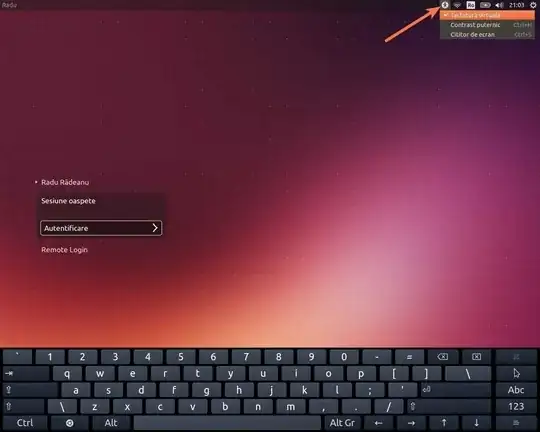
Just click on Virtual Keyboard in the Universal Access indicator from the top-right of your screen:

Radu Rădeanu
- 174,089
- 51
- 332
- 407
1
To always enable the keyboard on start add the following into /etc/lightdm/lightdm-gtk-greeter.conf.d/30_lubuntu.conf
a11y-states=+keyboard

waltinator
- 37,856

user
- 11
0
This is not a solution, just a workaround to login straight into your user account and then use any onscreen keyboard package (due to the reason that onboard only support gdm, a gnome login manager so we cannot use onscreen keyboard right here).
Enter lightdm config
sudo vi /etc/lightdm/lightdm.conf
Then add 2 lines to the end (remember to replace by your actual username):
autologin-user=your-username
autologin-user-timeout=3
Now we can restart lightdm:
sudo systemctl restart lightdm
So you can access to home screen after every reboot from now.

Tommy Trinh
- 21