136

How to clear text that existed in a text file without opening it?

I mean for example I have a file as hello.txt with some text data in it, and how can I clear the total text in that file without opening it?

By this, I mean not using any editor like nano, Gedit, etc.

Eliah Kagan
  • 119,640
Raja G
  • 105,327
  • 107
  • 262
  • 331

9 Answers9

225

Just open your terminal with CTRL+ALT+Tand type as

 > hello.txt

that's it, your data in that file will be cleared with out opening it even .

Example:

enter image description here

Raja G
  • 105,327
  • 107
  • 262
  • 331
56

The easiest way is to truncate a file is to redirect the output of the shell no-op command (:) to the file you want to erase.

: > hello.txt
eradman
  • 897
  • 8
  • 9
34

I have to do this all the time with log files. The easiest way I have found is with the following command:

cat /dev/null > hello.txt

This deletes allo of the content of the file, and leaves you with an empty file without having to open it in an editor, select text, any of that stuff. More specifically what it does is to replace the contents of the file with the contents of "/dev/null", or nothing. It's pretty slick, actually.

The only caveat is that the user you are currently logged in as must have write permission to said file.

Don Briggs
  • 441
  • 3
  • 3
15

I am also going to use redirection like rajagenupula's answer. But there is a little more flexibility. Open a terminal and type,

cat > hello.txt

And press Ctrl+C. It will wipe out the previous file. If you want upto this much it is fine.

If you wish you can do something more after wiping the file. In this way not only you can wipe a file without opening but also you can write a few lines with proper formatting in the file. Say you wish to write "Ubuntu is the best OS" after wiping the file, just do

cat > hello.txt
Ubuntu is the 
best OS

Then press Ctrl+C. Now the previous file is wiped out. At the same time words are there in two lines as I put them.

See the example:

enter image description here

sourav c.
  • 46,120
8

Not the shortest answer but...

This answer is based on another from Super User. Although not the shortest bash command, truncate is the most readable for average newbies:

$ echo Hello > Hello.txt
$ echo World! >> Hello.txt
$ cat Hello.txt
Hello
World!
$ truncate -s 0 Hello.txt
$ ll Hello.txt
-rw-rw-r-- 1 rick rick 0 Mar 20 17:32 Hello.txt

Parameters used with truncate command here:

  • "-s" set the size
  • "0" size will be zero

Clear everything except first 10,000 bytes

An advantage of truncate is you can specify how much to keep, not just zero:

$ truncate -s 10000 Hello.txt

... will truncate everything after the first 10,000 bytes. This could be useful if a program went crazy and dumped many Megabytes of data into a small log file:

  • Run the truncate command for a reasonable larger normal size of 10K
  • Open the file with your text editor and press End
  • Highlight and PgUp to delete the remaining bytes that don't belong (usually recognizable by ASCII garbage characters).
8

Another approach - cp the /dev/null to the file

xieerqi:$ cat testFile.txt                                                                                        
Filesystem     1K-blocks     Used Available Use% Mounted on
/dev/sda1      115247656 83100492  26269816  76% /
none                   4        0         4   0% /sys/fs/cgroup
udev             2914492        4   2914488   1% /dev
tmpfs             585216     1152    584064   1% /run
none                5120        0      5120   0% /run/lock
none             2926072    98096   2827976   4% /run/shm
none              102400       76    102324   1% /run/user

xieerqi:$ cp /dev/null testFile.txt                                                                               

xieerqi:$ cat testFile.txt

xieerqi:$ 

Why does this work and how does this work ? The testFile.txt will be opened with O_WRONLY|O_TRUNC flags, which means if the file exists - it will be truncated, which means contents discarded and size set to zero. This is the same flag with which > operator in shell opens the file on the right of that operator.

Next, cp will attempt to read from /dev/null and after reading 0 bytes will simply close both files, thus leaving testFile.txt truncated and contents effectively deleted.

Knowing that, we could in theory use anything that allows us to open a file with O_TRUNC. For instance this:

dd of=testFile.txt count=0

Small difference here is that dd won't perform any read() at all. Big plus of this dd version is that it is POSIXly portable. The dd specifications state:

If the seek= expr conversion is not also specified, the output file shall be truncated before the copy begins if an explicit of= file operand is specified, unless conv= notrunc is specified.

By contrast cp /dev/null testFile.txt isn't necessarily portable, since POSIX specifications for cp cover what happens only if source_file is non-regular and when -r/-R flags are specified (big thanks to Stephen Kitt for pointing this out), but not what happens when -r or -R are omitted, which is the case here. However it appears at least GNU cp defaults to using rule 3 in the same spec, which is truncating the existing file without changing its type.

5

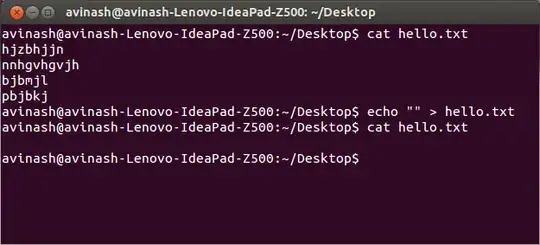
If a file was created with the name hello.txt and was provided with some texts then the below command in terminalctrl+alt+t will remove all the text in the hello.txt file,

echo "" > hello.txt

enter image description here

Avinash Raj
  • 80,446
1
vi filename -c ':1,$d' -c ':wq'

worked the best for me because of the particular permission it had

Daniel
  • 11
0

So, I see a lot of redirections being used to answer this ;)

A little different approach with the combo: rm & touch

rm hello.txt && touch hello.txt

(yeah... yet another cheat!)

So with this command combo the file hello.txt wasn't opened and in the end you still have file hello.txt in its place with the contents cleared. Just like you wanted!

rusty
  • 16,917