7

I'm using Ubuntu 12.04 . If more information is needed, please tell me. I Tried some guides to cature my login screen:

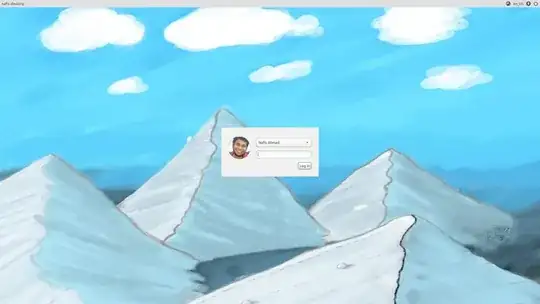
How can I take a screenshot of the login screen?

http://www.howtoforge.com/how-to-take-a-screenshot-of-your-login-screen

I tried the first one, but after running:

$ sudo bash /tmp/shot.sh >/tmp/shot.xwd

I'm getting this:

No protocol specified
No protocol specified    
xwd unable to open display ':0'

and i'm getting an xwd file in my tmp folder. running the other commands giving errors.

tried the second one, after running:

chvt 8; sleep 5; XAUTHORITY=/var/gdm/:0.Xauth DISPLAY=:0.0 import -window root /tmp/gdm-login-shot.png

I got:

No protocol specified
import: unable to open X server ':0.0' @ error/import.c/ImportImageCommand/366 

Many Thanks for helping (:

EDIT to vine_user: here the output from the terminal-I cacked it from within the system while I'm looged in:

ubuntu@PrecisePangolin:~$ echo 'sleep 5; DISPLAY=:0 XAUTHORITY=/var/run/lightdm/root/$DISPLAYDISPLAY xwd -root' > /tmp/shot.sh
ubuntu@PrecisePangolin:~$ sudo bash /tmp/shot.sh >/tmp/shot.xwd
bash: /tmp/shot.xwd: Permission denied
ubuntu@PrecisePangolin:~$ sudo su
root@PrecisePangolin:/home/ubuntu#  sudo bash /tmp/shot.sh >/tmp/shot.xwd
No protocol specified
xwd:  unable to open display ':0'
root@PrecisePangolin:/home/ubuntu#

EDIT 2!: HERE IT IS!: enter image description here

just uploading-this uploadong site is better than other iuset to use (: : enter image description here

yinon
  • 1,229

4 Answers4

4

Step1:

Make /tmp/shot.sh using this command:

echo 'sleep 20; DISPLAY=:0 XAUTHORITY=/var/run/lightdm/root/$DISPLAY xwd -root' > /tmp/shot.sh

You may change the seconds of sleep suitably.

Step2:

Login to the text mode by pressing Ctrl+Alt+F1.

Step3:

Execute this command;

 sudo bash /tmp/shot.sh >/tmp/shot.xwd

Step4:

Return to the GUI mode by pressing Ctrl+Alt+F7.

Step5:

Logout by normal way. While you can see login screen, wait for some seconds.

Step6:

Login by normal way. And execute this command in terminal;

convert /tmp/shot.xwd /tmp/shot.png

(you need to install imagemagick, if you don't have installed it yet)

So, you can check the picture using this command;

eog /tmp/shot.png

Reference: http://ptspts.blogspot.jp/2010/02/how-to-create-screen-shot-of-gdm-login.html

In 12.04, it differs in using lightdm.

vine_user
  • 2,871
3

The answer by vine_user gave me a Black image so I modified it as below and got it correctly

  1. Make /tmp/shot.sh with the command echo 'chvt 7; sleep 10; DISPLAY=:0 XAUTHORITY=/var/run/lightdm/root/$DISPLAY xwd -root' > /tmp/shot.sh
  2. Logout and login to text mode (Ctrl+Alt+F1)

  3. Execute sudo bash /tmp/shot.sh >/tmp/shot.xwd

  4. Return to GUI mode by pressing Ctrl+Alt+F7 (sometimes it is Ctrl+Alt+F8 - if it is your case then modify the fisrt command by replacing chvt 7 with chvt 8

  5. Use the command convert /tmp/shot.xwd ~/Desktop/shot.png to convert the /tmp/shot.xwd to ~/Desktop/shot.png (imagemagick is required)

Here is the screenshot of my login screen enter image description here

0

Try running the following command...

unity-greeter --test-mode  

... and taking a screenshot of that.

SirCharlo
  • 40,096
0

I have Written a small script to make it simple. I am sharing it here.

Install Step 1: Save this code into your home directory a file named loginsceenshot.sh

## Save this file in your home folder loginscreenshot.sh 
## make the file Executable 
## Hit Ctrl+Alt+F1 
## login and run program using
## sudo ./loginscreenshot.sh
echo "Waiting  .... "
echo "Now Go to Ctrl+Alt+F7"
sleep 15
echo 'Click ...  '
DISPLAY=:0 XAUTHORITY=/var/run/lightdm/root/$DISPLAY xwd -root > tmp.xwd
convert tmp.xwd ScreenShot.png
rm tmp.xwd
echo "ScreenShot is Taken, Please check your home directory and open 'ScreenShot.png'"

Install Step 2 Hit Ctrl + Alt + F1, login, and type this.

chmod +x ./loginsceenshot.sh
sudo apt-get install imagemagick

Use Step 1 Hit Ctrl + Alt + F1, login, and type this.

sudo ./loginsceenshot.sh

Use Step 2 Hit Ctrl + Alt + F7, goto Login page and wait for 15 sec.

Use Step 3 Open you home directory and look of ScreenShot.png

Myhomescreen